Expenses
How to scan a fiscal receipt on a computer
The QR code on a receipt becomes a cost, verified with the Tax Administration.
Every fiscal receipt has a QR code. Tefter reads the receipt from it and verifies it with the Tax Administration: seller, items, tax and payment method.
-
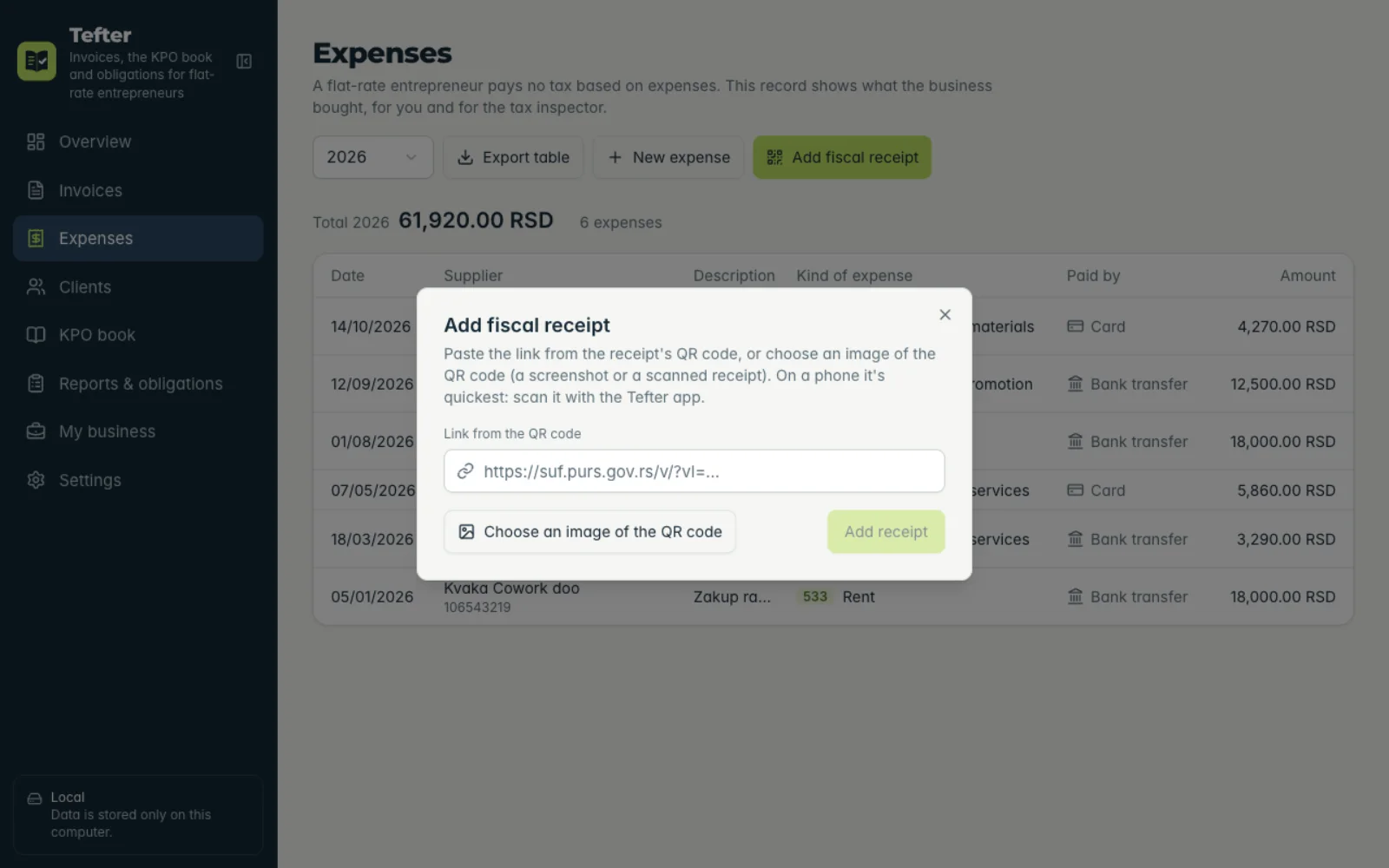
1Add the receipt
Under “Expenses” click “Add fiscal receipt”. Paste the link from the QR code or click “Choose an image of the QR code” (a screenshot or scanned receipt).
-
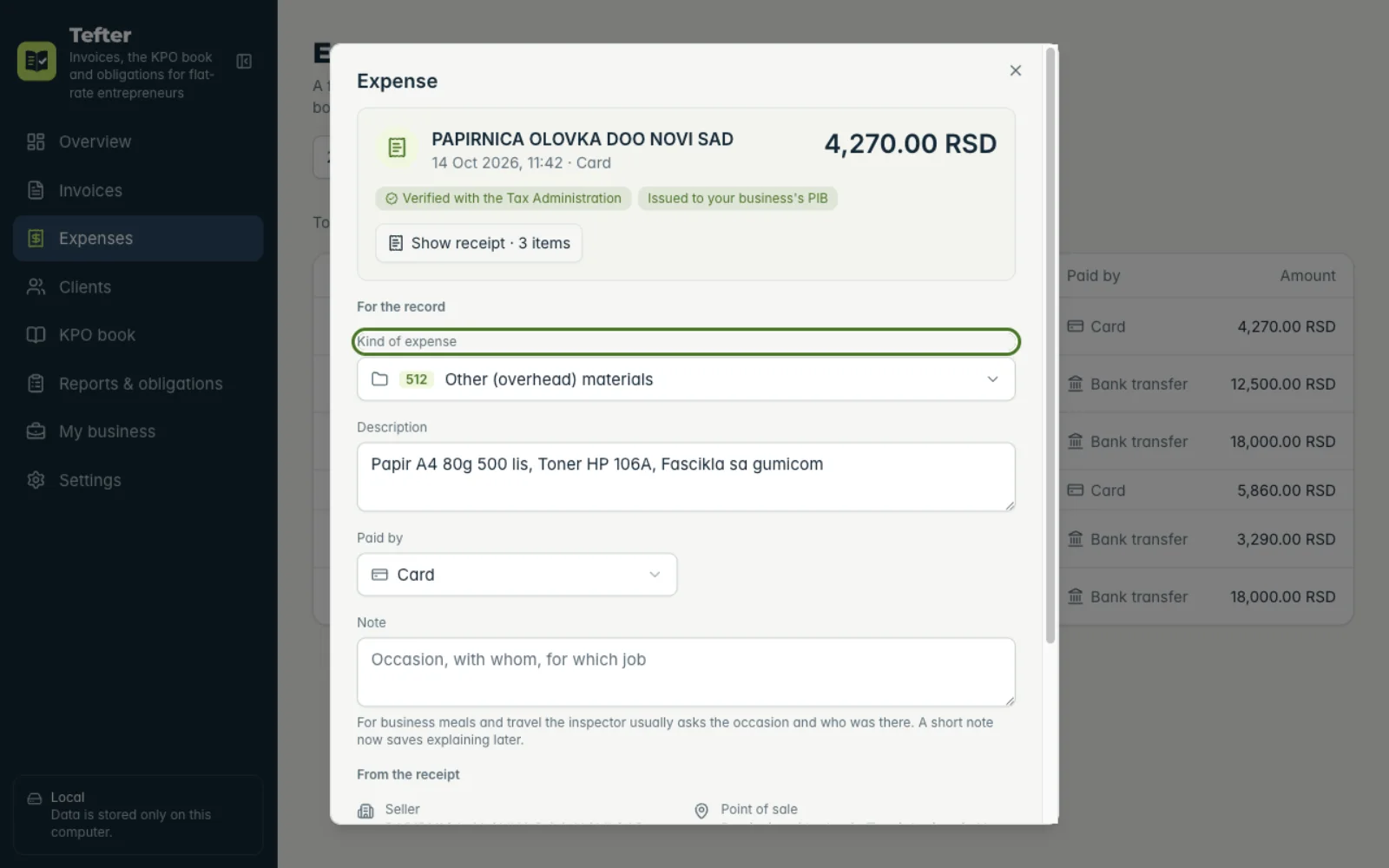
2Check the cost type
Tefter suggests the “Kind of expense” from the receipt's items, with its account code. Change it if needed and save.
-
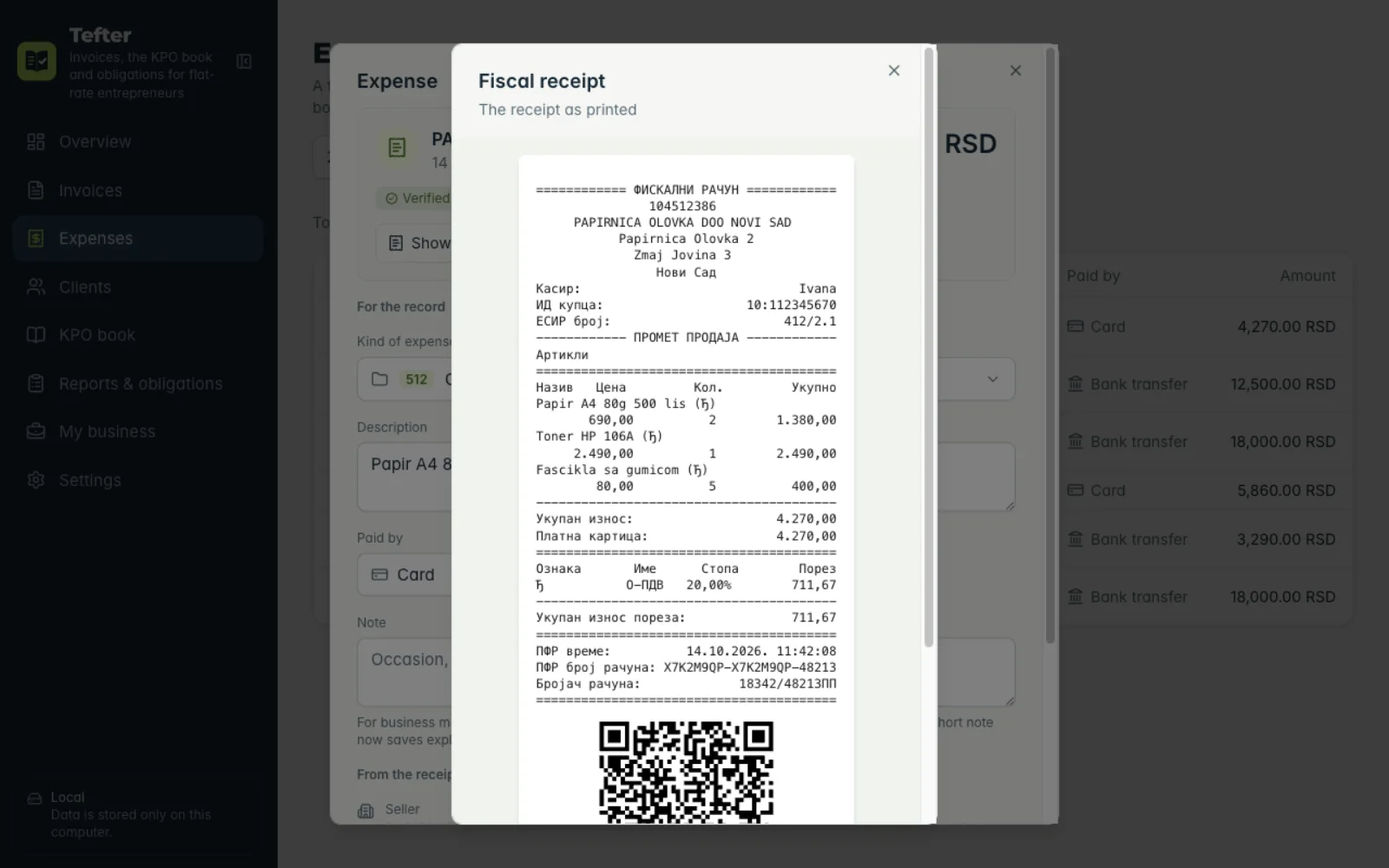
3View the receipt
“Show receipt” shows the receipt as printed. “Issued to your business's PIB” means it was issued to your business.
Related guides
Didn't find the answer? Write to podrska@tefter.online